← Back to Guide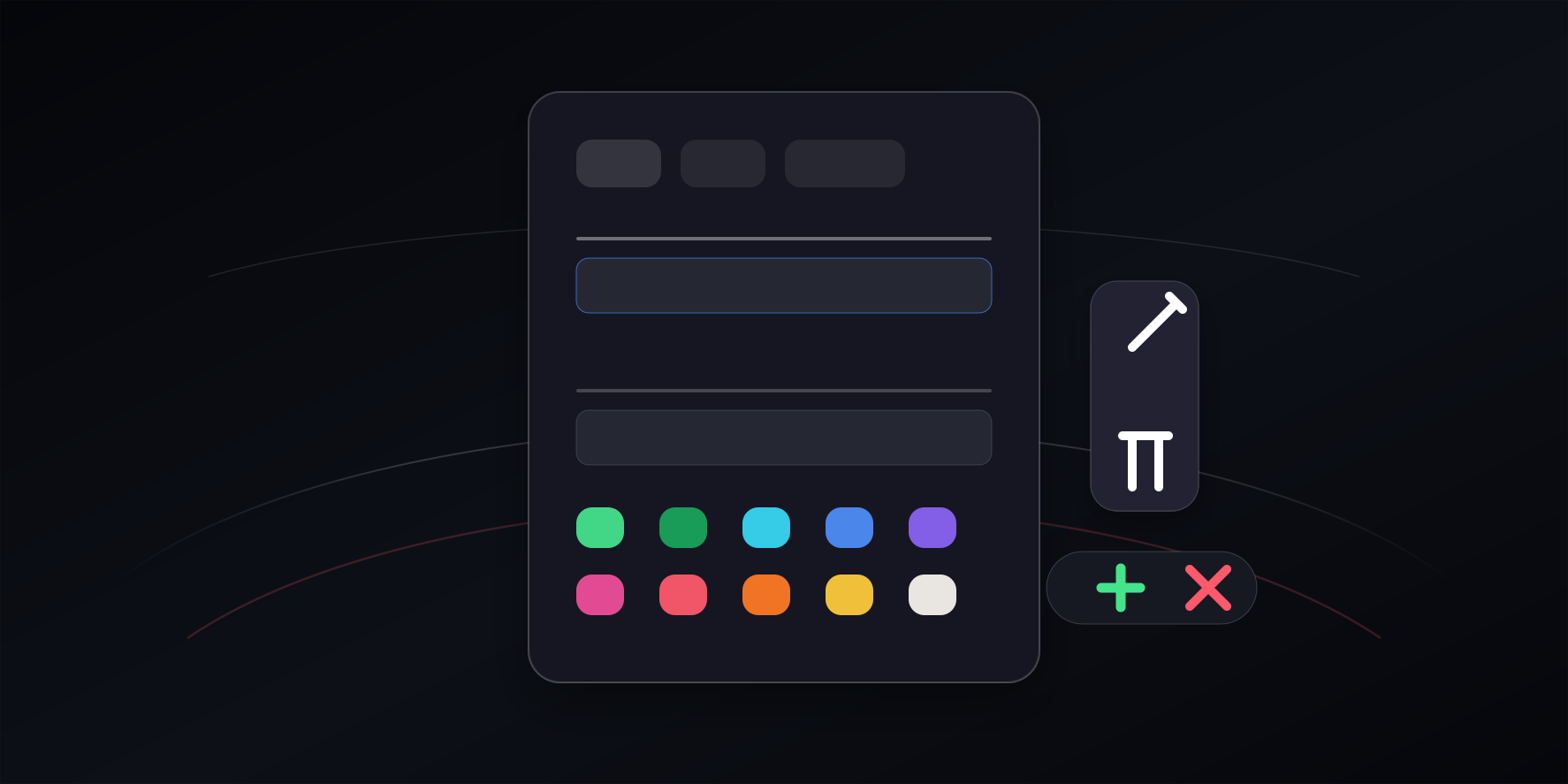
03 / 15
Adding, Editing & Deleting Links
Adding a Link
Click the + icon on the cylinder to open the add dialog.
- On the URL tab, enter the page URL. A display name is filled in from the domain; change it if you like. If you leave it as is and Web Helper finds a Chrome bookmark for the same page, that bookmark's title is used. Curv Link does not access the site itself to read its title.
- Optionally choose an icon image and a marker color.
- Click the add button. The new icon appears on the front side of the cylinder.
The same dialog has File, Text, and Markdown tabs for saving files and notes. You can also add a URL from Settings → Links → Add URL or the Common Links list, or drop a link or file onto the Curv Link screen.
Editing a Link
On a computer, right-click an icon to show its edit and delete buttons. On any device, the Edit (pencil) button in the top-right corner shows these buttons on the front icons. Press the edit button to change the name, URL, tags, notes, Markdown, icon image, or marker color, then save. A folder's URL cannot be changed.
Deleting a Link
Press the delete button next to an icon. The link is removed right away, without a confirmation dialog. Deleting a folder also deletes everything inside it.
Tip: Deletion cannot be undone with Ctrl+Z, so export a backup before a big cleanup. Deleting in Curv Link does not touch your Chrome bookmarks by default. Only if you use Web Helper and turn on Delete linked bookmarks with Curv links (off by default) in Settings → Data → Browser Bookmark Sync are the linked Chrome bookmarks deleted too, without asking.