← Back to Guide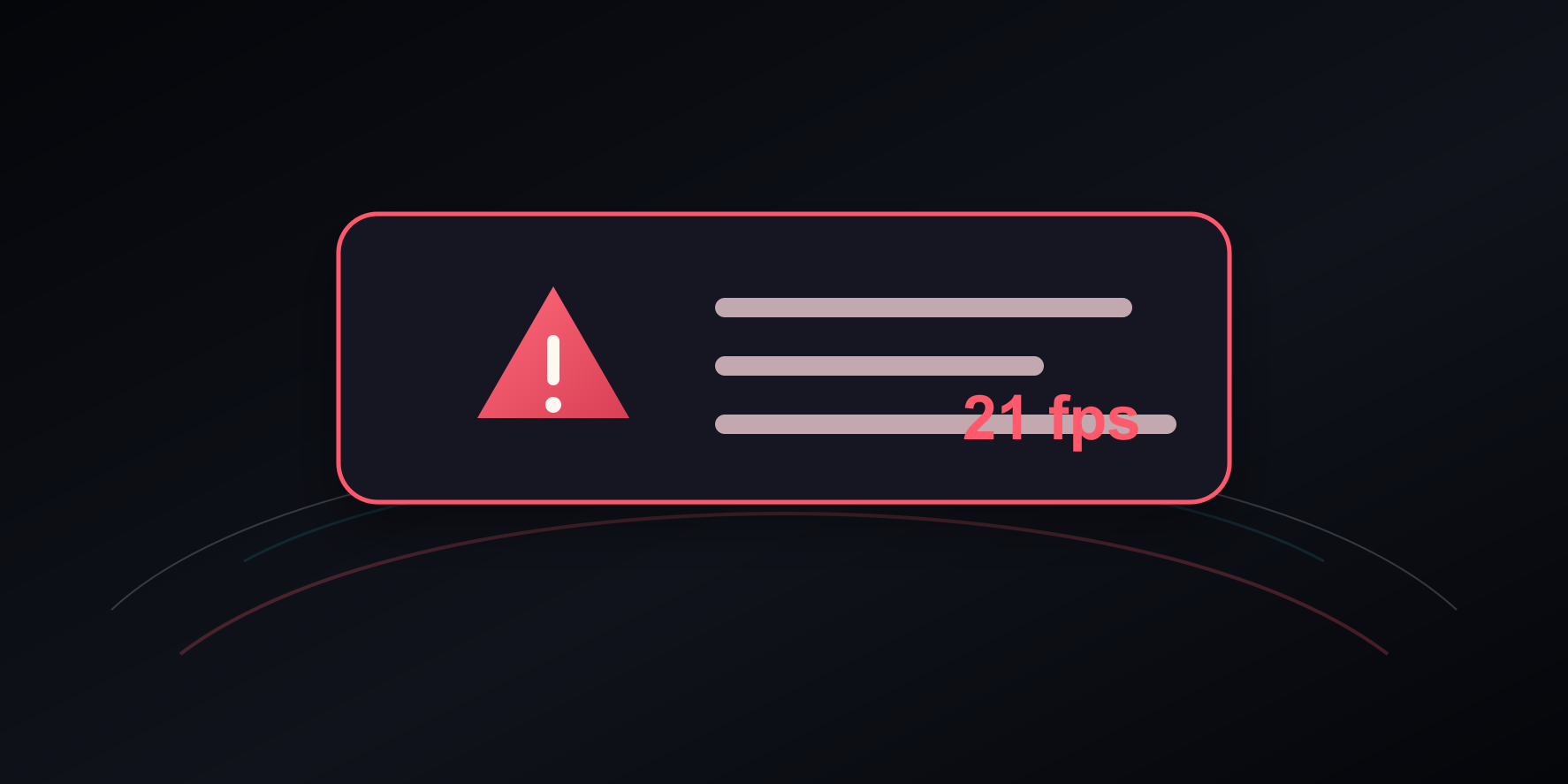
08 / 15
When Curv Link Feels Slow
What This Warning Means
This warning means the 3D view is not running smoothly on the current device. It is not a data-loss warning, but you should avoid adding important data while the screen is visibly stuttering.
First Checks
- Close heavy apps, video meetings, games, screen recorders, and many unused browser tabs.
- If this is a laptop, connect the charger and turn off battery saver mode.
- Reload Curv Link once. If the warning remains, continue with the steps below.
Turn On Chrome Graphics Acceleration
- Open Chrome settings from the three-dot menu.
- Go to System.
- Turn on Use graphics acceleration when available.
- Click Relaunch, then open Curv Link again.
In Microsoft Edge, the same setting is under Settings → System and performance. On Android, update Chrome and Android System WebView from the Play Store, then restart the device.
Check Whether the GPU Is Actually Used
- Open
chrome://gpuin Chrome. - Look at Graphics Feature Status. WebGL and WebGL2 should say hardware accelerated.
- If you see SwiftShader, Software only, or a software renderer, Chrome is not using the real GPU.
Fix Software Rendering on Windows
- Open Windows Settings > System > Display > Graphics.
- Add or select Chrome, then set it to High performance.
- Update the GPU driver from Windows Update, or from Intel, NVIDIA, or AMD.
- Restart the PC after the driver update.
Reduce Curv Link Load
- Open Display Settings and reduce the number of columns, icon size, and title size.
- Use the solid Color wallpaper instead of a large custom image or a moving wallpaper.
- Move rarely used links into folders so the first screen has fewer visible icons.
- If Media mode is open, reduce its columns and card size in the Preview pane of Display Settings, or leave Media mode while checking performance.
If It Still Appears
Try Microsoft Edge or another PC with better GPU support. If Curv Link is being viewed through Remote Desktop, a virtual machine, or an old office PC, WebGL may be limited by that environment.
Safe rule: When the warning remains after these steps, use Curv Link only for checking the screen. Add or reorganize important local files on a device where the warning no longer appears.